Overview
Characters assignments start with the selection of a block or text within a block. You can then assign a character from the ribbon, side lists or keyboard accelerator. Let’s show this on Chapter 1 of Paull of Montreal.
The first paragraph is pure narration so we leave it as is. The second paragraph starts and ends with dialog. Select “Forty-fifteen.” or double-click inside of it (A.B. Genesis automatically selects the text enclosed in “). The character talking is called Pedro, but he is not a recurrent character. Therefor we will use a Generic character, “Man1” in this instance.
Assigning a Character

Generic characters can be renamed within a chapter. This simplifies the use of generic characters and helps remembering the characters.

We now do the same for the second dialog.

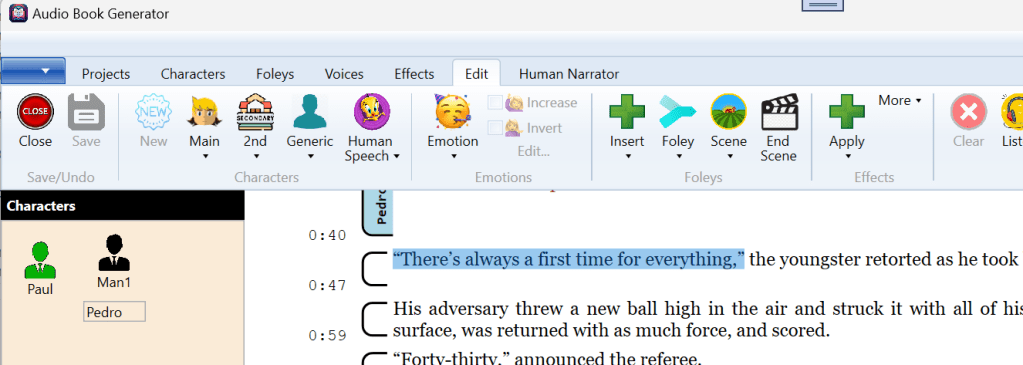
Once a character is used in a chapter, it becomes available on the left side for convenience.
Characters speaking the same text
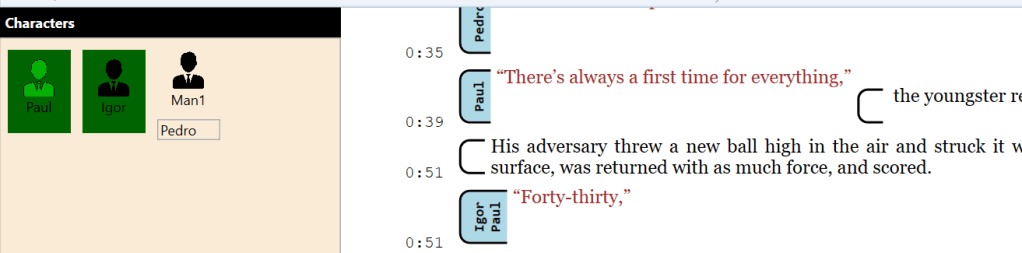
It is possible to have the same dialog spoken by more than one character. To add a second (or third) overlapping character, hold the “shift” key while adding the voice. In the example below, Forty-thirty will be side by both Igor and Paul at the same time.
If you select a new character without holding Shift, it will simply replace the character.
Removing the character
Simply right-click on the text box and select “Clear.”.
Human-Narrated blocks
Operations on externally recorded audio characters or narrator are a bit different. They are not using emotions or such, but depending on how the audios are cut (small files, large files), their entries might need to be split or merged.
Splitting
You can put the caret inside a human-character text box and use split the match the actual coverage of the human speech files.


Merging
Conversely, you can select both text blocks to merge them back.


Matching
TBC
 Christian-Eric Falardeau