Overview
We already saw many aspects of Foleys, but here is the full UI.
The Whole Picture in a Project
When a project is open, the Foleys’ tab is split into two main areas. The top one contains all the Project foleys. The bottom segment allows to browse the foley files to be then used to create or augment project foleys. The project foleys are the ones that can used in the project.
In this example, we are looking into the ambiance music for the Introduction called “Scourmont Office.” Is the Petite musique de nuit K. 525 the right choice? Do we need to had a -6dB effect to make it less loud. Should be replace by “Violin Ambition”? Does are all the tasks that can be done. At each step, one can always “Test” the result.
When foley files are selected, you can also create a new Project Foley.

Let’s Create a non-Trivial Foley
Now we want to create a “steps-in-snow” foley that will use micro audio files providing slightly different foot steps in snow. Let select “walking” in the left panel, “foot-step-snow” in the middle and, finally files, 1@6.

Then we click on “New” on the ribbon bar.
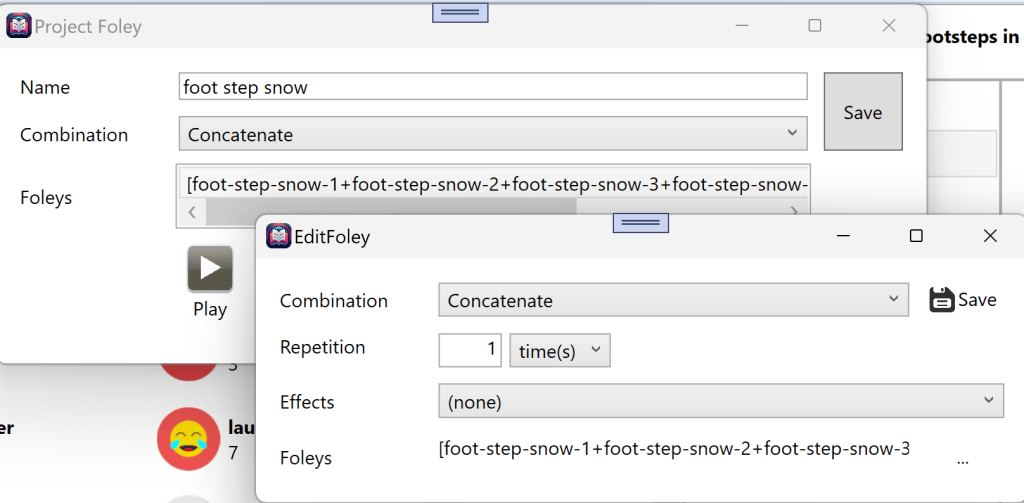
Let change the name and the combination. We want to use one of these steps randomly so they will sound less repetitive to the listener. Double-click on the first list in the foleys (showing the 6 files separated by “+”.
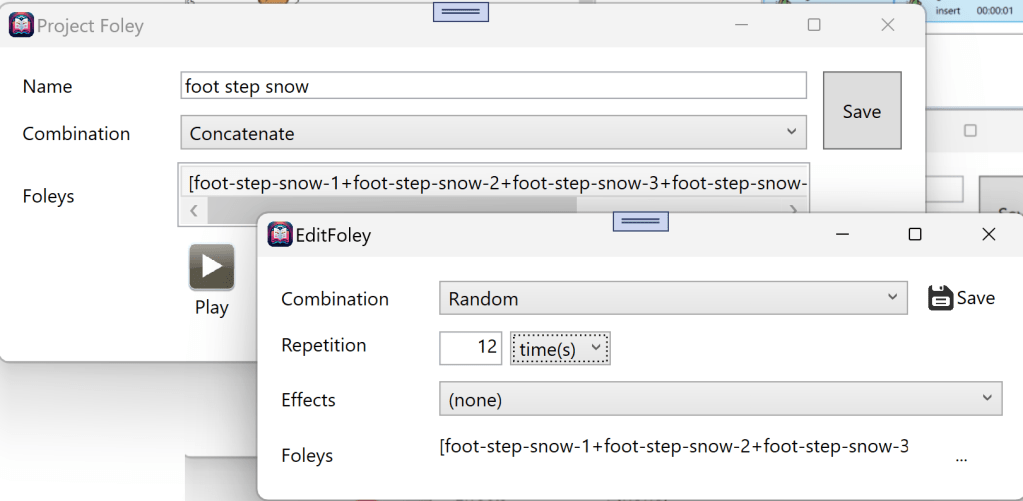
Now we have instructions to create a 12-steps foley of randomly selected steps in the now. If we had wanted to create a 30 seconds sequent, changing the repetition and the units will accomplish that.
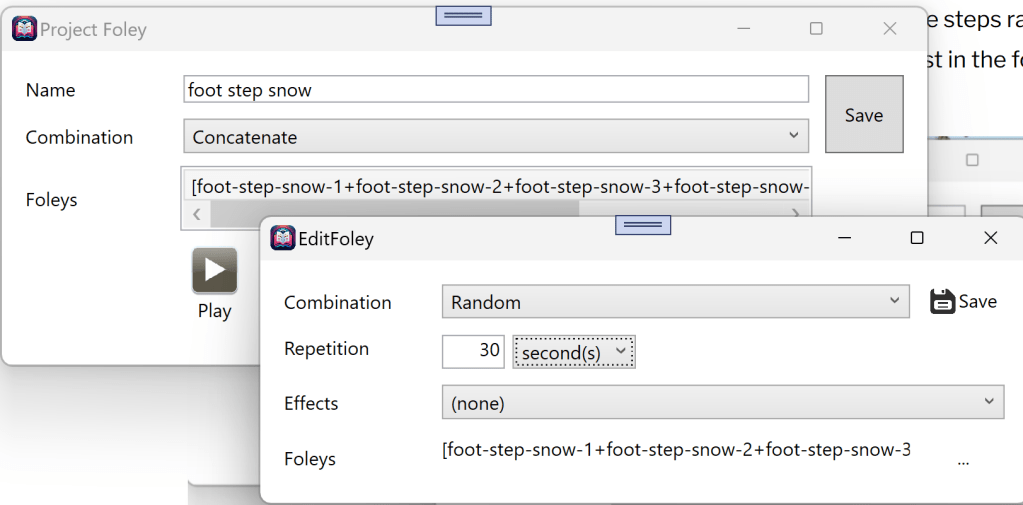
We’ll talk more about foleys in the “The Editor” portion of this presentation.
 Christian-Eric Falardeau