Overview
A. B. Genesis supports human-narrated voices to be used for some characters (or even the narrator) and used transparently with the generated voices, foleys and effects.
Preparing the files
Only MP3 files are currently supported. When imported into A.B. Genesis, they be converted to 48Khz, mono files so they can be mixed and merged with the other audio files.
Human Characters
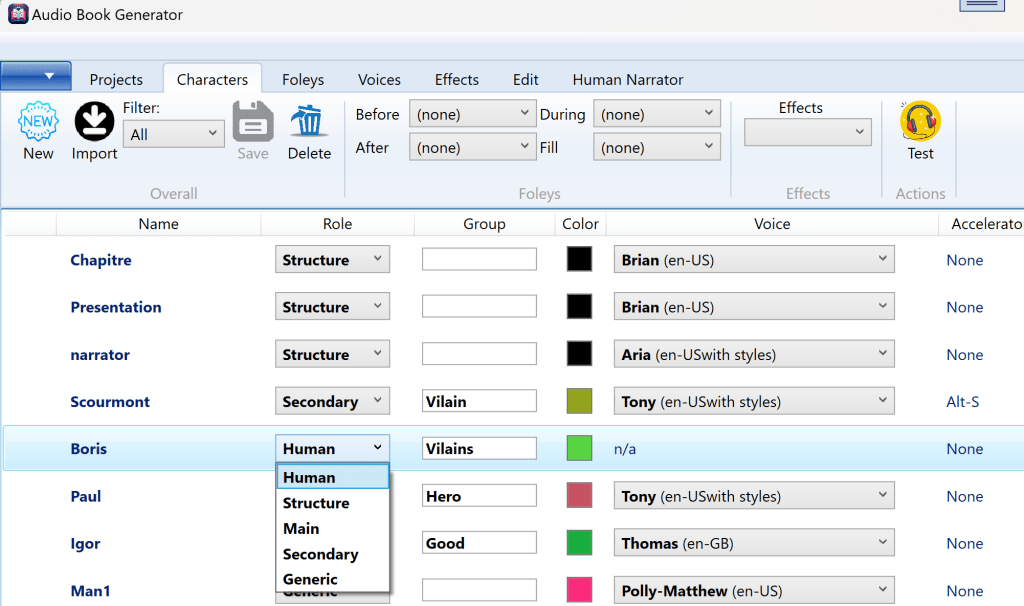
The first step will be to configure a character as “human.” One your project is open, select the “Characters” tab. From there, you can simply change the “scope” or the character to be “Human.”
Importing and Managing the files
One of the key elements to understand when dealing with human narrated files is that they are handled at the scene/chapter level and not at the project level. This is to keep the information organized and manageable.
Now that we have Boris as a human character, let’s open the Introduction file. Two new tabs will appear, a “Edit” to work on the file and a “Human Narrator” tab. Click on that last tab.
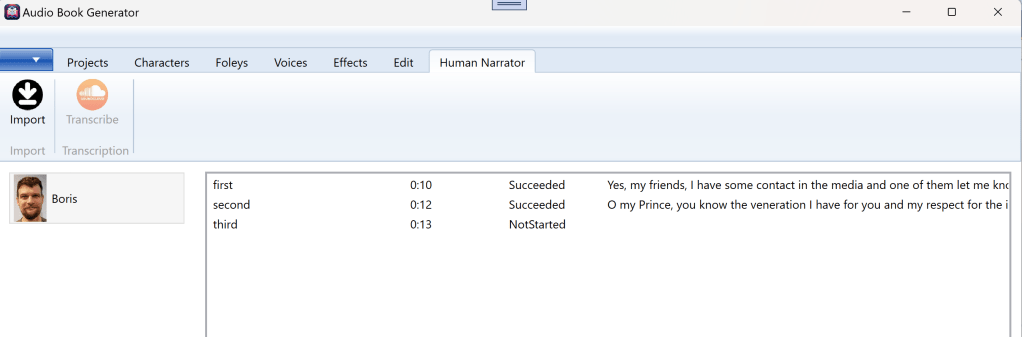
In this example, we dragged dropped three files to Boris’s list of files. Or you could use “Import” and select the files that way.
In order to better integrate with the full set of functionalities, the files should be kept small and never contain more than one paragraph. A. B. Genesis provides tools to help breaking files into smaller ones, but the more is done with the original source, the better.
Transcription
Optionally, you can ask A.B. Genesis to transcribe the files to extract the text, which will then be used later to simplify associating audio files with sentences, expressions or paragraphs. Simply select the files needing to be transcribed and select “Transcribe.” Each file will be processed in parallel, but the process can be long as it is considered a low priority service by Azure Speech.
Assigning Files to Speech Blocks
Now of you go to the “Edit” tab, you will see the current state of our Introduction. The human blocks have an Azure header when they are not associated with an audio file and Blue when they are.
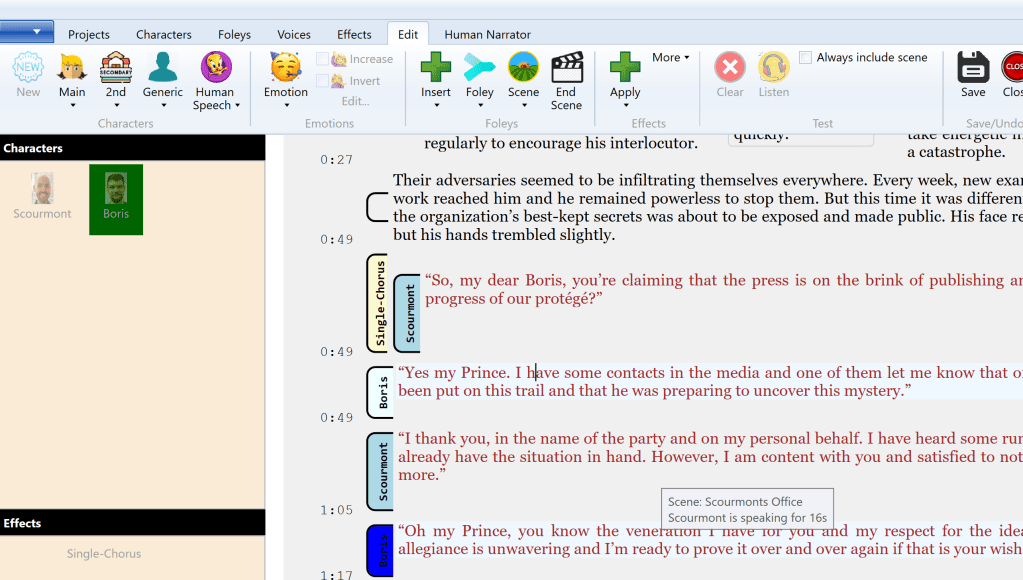
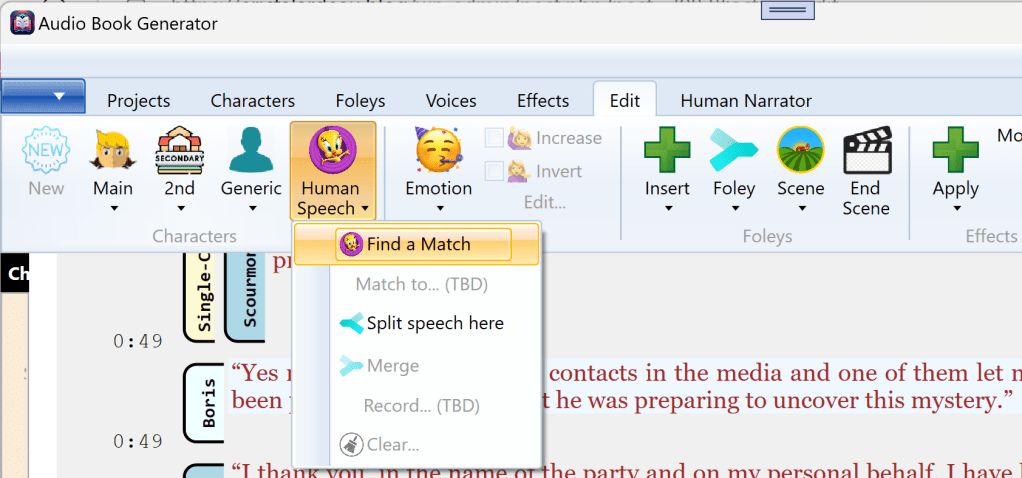
To associate a sentence or paragraph to a file, you can simply click on the text, which will be the blinking caret in, or just on the “Boris” header and then open the ribbon section “Human Voice.”
“Find a Match” will use the transcriptions to determine (using fuzzy logic) if one of the imported files is a very strong match with the actual text. “Match to” will open with the list of files for that character.
 Christian-Eric Falardeau